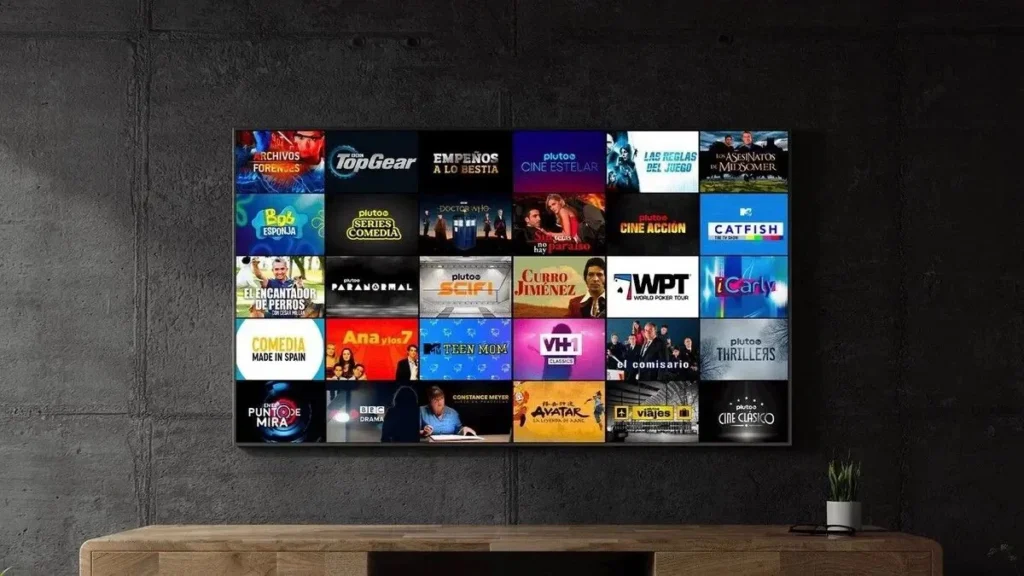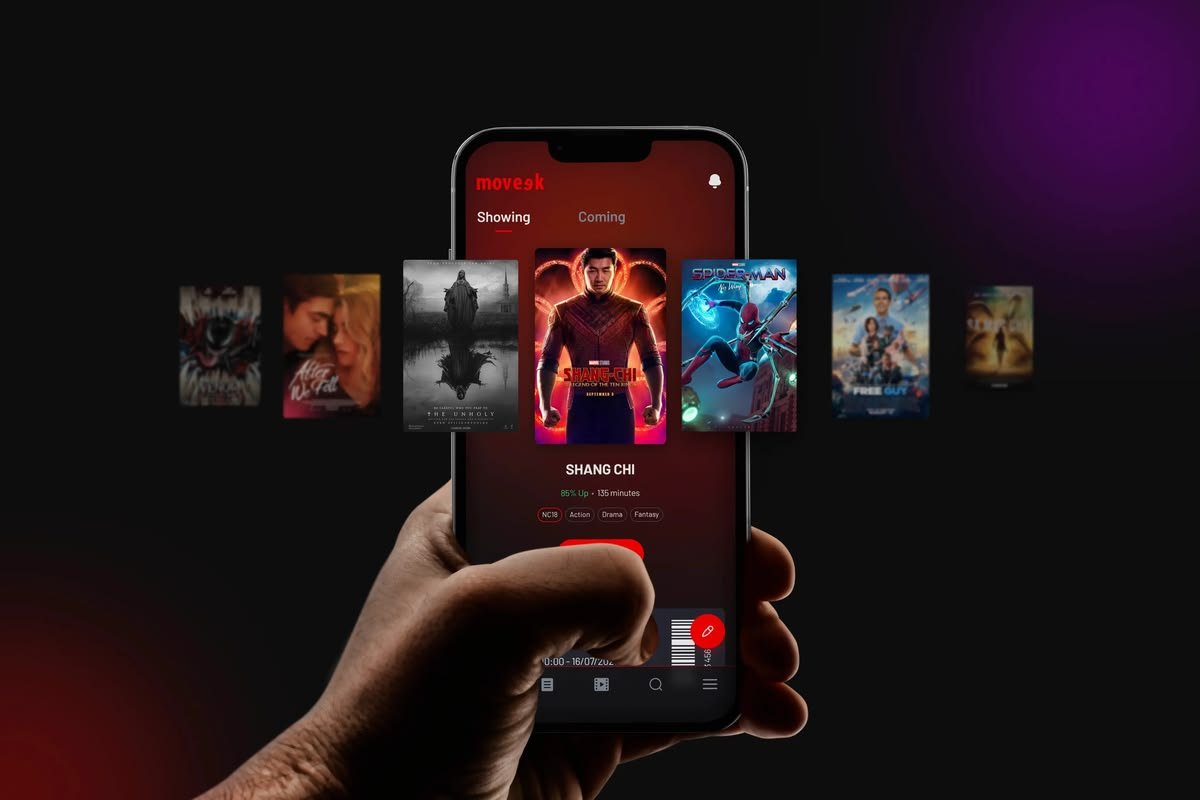

After purchasing an IPTV subscription, the user needs to install a compatible playback app with their device, and then add the in-app subscription data.
The steps to operate are slightly different between Smart TVs, Android TVs, and phones, but the basic idea is the same.
In this guide, we explain how to set up your device and turn on the subscription, as well as the most important solutions to common issues.
Before you begin, make sure that the following is available:
It’s best to have your device’s name and operating system ready before contacting support, as the installation method varies between Samsung, LG, Android TV, and Apple TV.
Samsung displays use their own operating system, so you must download an app that is available within the Screen App Store.
General Steps:
Menu names may vary depending on the screen model and system version.
The way the subscription runs on LG monitors is similar to Samsung devices.
Start by logging into the LG App Store, then look for a compatible playback app such as apps that support adding subscription data.
After installation:
If you don’t find the app in the Store, it might not be available on the screen model or in the area specified in your device’s settings.
Android TVs are flexible options, as there are a large number of playback apps available within the Google Play Store.
Steps:
Make sure to type the data without extra spaces, as a one-letter error may prevent sign-in.
IBO Player is one of the playback apps that can be used to add an IPTV subscription on compatible devices.
Typically, the setup process is done through the following steps:
The Playback app doesn’t provide the subscription itself, but rather serves as a way to view a subscription purchased from the service provider.
Najd Stream provides options to activate IBO Player for a year or for life.
Ora TV is one of the playback apps available within Najd Stream products, with one-year or lifetime activation options.
After installing the app on the compatible device, the subscription data is entered or linked to the app according to the specified activation method.
Before you purchase an app activation, make sure that:
To turn on the subscription on your Android phone:
Use a stable Wi-Fi network to avoid consuming phone data, especially when watching in high quality.
The subscription can be run on Apple devices using a compatible app from the App Store.
After downloading the app:
Some apps may be free to download but you need to purchase or activate to use all the features.
The subscription can be run on Windows and Mac devices through compatible software or a web app that supports subscription data.
Using a computer is useful when you want to:
Don’t enter your subscription data inside anonymous software or untrusted sites.
Internet speeds should start from 10 Mbps for good viewing, with higher speeds needed when running high resolutions or using multiple devices on the network.
The quality of the Wi-Fi also affects the experience, even if the basic plan speed is high.
To improve connectivity:
The cause may be one of the following issues:
Copy the data directly and avoid adding spaces before or after.
Check the expiry date of the bundle and renew it when needed.
Some playback apps need a separate license from the watch subscription.
Test the connection and open another app to make sure the internet is working.
Subscription may stop if it is used on more devices than allowed.
Close the app, restart your device and router, then try again.
A common mistake is to think that buying an IBO Player or Ora TV app includes a viewing subscription.
There is a difference between the two producers:
IPTV Subscription: Provides service data and content available within the plan.
Startup app: The software you use to enter your subscription data and view it on your device.
So you may need to purchase a subscription to watch and activate an app separately, unless the plan states that it includes the app.
Turning on IPTV on your smart TV or mobile starts with choosing a compatible app, then entering the subscription details correctly.
Make sure you know your device’s system, activate the app when needed, and use a stable internet connection.
Through Najdstream, you can purchase Tiger TV, Hulk TV and Max TV packages, as well as options to activate IBO Player and Ora TV depending on your schedule.
No, it is a running app, and it requires subscription data that is purchased separately.
It can be played using an external device such as an Android TV Box or Fire Stick.
It could be caused by poor internet, a subscription expiration, or a temporary issue with the app.
It depends on the number of devices allowed in the plan and the simultaneous operating conditions.